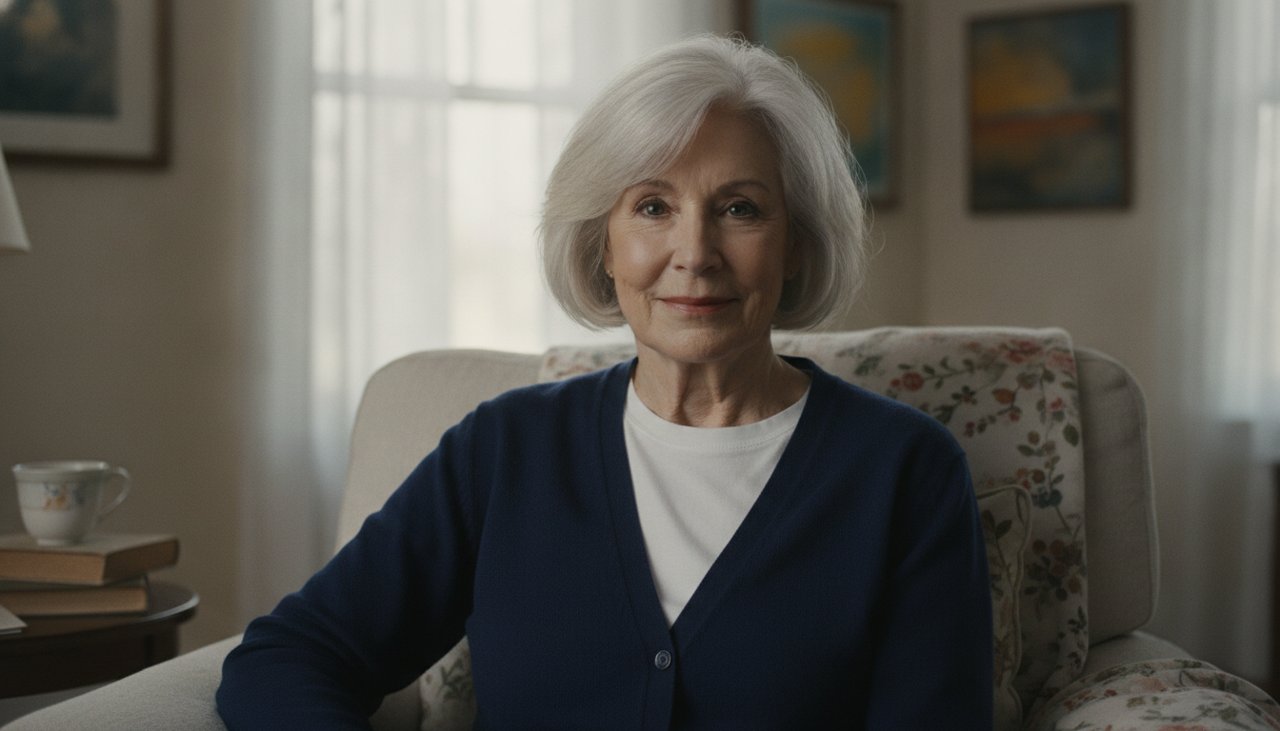
What a memorial video maker does
A memorial video maker turns one photograph into a short, quiet clip for a funeral, a celebration of life, an anniversary or a family gathering. The person blinks, gives a small smile or turns their head slightly, with a still camera and soft light. It is a moving portrait, not a documentary.
It does not bring anyone back. It does not generate a voice, add words the person never said or make them look present. The motion is a blink and a small expression, and that limit is deliberate. The clip should support memory, not replace it.
Because it is short and silent, it fits between speeches, at the start of a slideshow or on a small screen at a gathering. One quiet moment usually says more than a long sequence, and it leaves room for the family to remember in its own way.
Where it fits in a service or gathering
The clip works best as a single beat in a larger ceremony. Decide where it belongs before you build it, so the length and the tone match the moment.
- Opening a celebration of life: play the clip once before the first speaker, then continue with still photographs.
- Order of service screen: a short loop on a laptop or a small screen near the entrance, with the name and dates on a separate title card.
- Anniversary dinner: a quiet moment before or after a toast, at home rather than on a large screen.
- Family group chat: send it to relatives who could not travel, with a note about the photo and the year it was taken.
- Keepsake: keep the MP4 with the scanned photograph so the next generation has both versions.
Three quiet styles
Each style sets a calm scene and adds one small movement. None of them includes speech, singing, text or a dramatic camera move.
- Portrait and candle: a warm living room with a single candle, white flowers and framed photos out of focus. The person blinks, gives a small smile and looks slightly toward the camera while the flame flickers.
- Garden afternoon: a green garden in soft late light. The person turns their head slightly toward the camera and smiles faintly as leaves move behind them.
- Window light: a bright window, a light curtain and a book. The person looks up from the pages, blinks and gives a small smile.
Choosing a photo with care
Pick a photo where the person looks like themselves to the family. A favorite decade often works better than the most recent picture, especially if the last years were difficult. The face should be clear, the eyes visible and the light even across the features.
If relatives disagree about the photo, that is a signal to slow down. Use a still slideshow for the service and keep the animated clip for a private share, or make two clips and let the family choose. A photo from a hospital room can be accurate and still not be what people want to see on a screen.
Ask the closest family members before you animate, and ask the person directly if they are alive and the clip is for an anniversary or a milestone. A tribute for a living person is a gift only if they want it.
Using it with respect
Label the clip as AI animated. In a service, a short spoken introduction or a line on the title card is enough. Guests should not be left wondering whether they are watching old footage, and honesty protects the family from a difficult conversation later.
Keep the motion small. A faint smile suits a reserved person, while a broad grin can feel like someone else. Avoid adding a voice, avoid making the person appear to speak, and avoid presenting the clip as new video of a living moment.
Show it to one or two family members before the event. Reactions vary. Some people find the movement comforting, others find it unsettling, and a private test avoids a surprise in front of a room full of guests.
Words, music and pacing
The clip is silent and contains no text. Add the name, the years and a short line on a title card in your editor, where you can check the spelling. Keep the text off the face and leave it on screen long enough to read without rushing.
Choose music you have permission to use and keep it low under any spoken tribute. A familiar song can carry strong associations, so ask the family before you pick one. Silence is also a valid choice, especially in a service where people are already listening closely.
The standard clip is 4 seconds at 480p. HD is 8 seconds at 720p. A short clip is easier to place in a ceremony than a long one, and it gives the family room to add their own words around it.
Making a longer tribute
One clip is a moment. A fuller tribute is usually a slideshow: still photographs in chronological order, this clip as the opening or closing beat, captions with names and years, and one piece of music. Keep it under five minutes for a service. At a family gathering, shorter is kinder.
Test the file on the screen and the speakers you will use, and keep a copy on a phone as a backup. Venue equipment varies, and a video that plays at home may sit in the wrong aspect ratio on a projector. A landscape 16:9 clip fits most screens.
If you post the tribute publicly, ask the family first and mention that one image was animated with AI. For a printed keepsake, use a frame from the clip or the original scan, because the photograph is still the object that lasts longest.
What a video costs
The sample video on this page is there to watch before you decide. A 480p clip with 4 seconds costs 30 credits, and an HD clip at 720p with 8 seconds costs 80 credits. Videos made with credits have no watermark and download as an MP4.
To make one, create an account and pick a credit pack. You can buy one-time credit packs, no subscription. The smallest is 1,000 credits for $9.90, enough for about 33 videos of this effect. Credits never expire and are only taken when a video starts; if the render fails, they return to your balance automatically.
What happens to your photo
Your photo is sent to the AI model only to create your video. Uploaded photos are deleted after 24 hours, and we never publish your photos or videos anywhere. The finished clip is yours to download as an MP4 file.