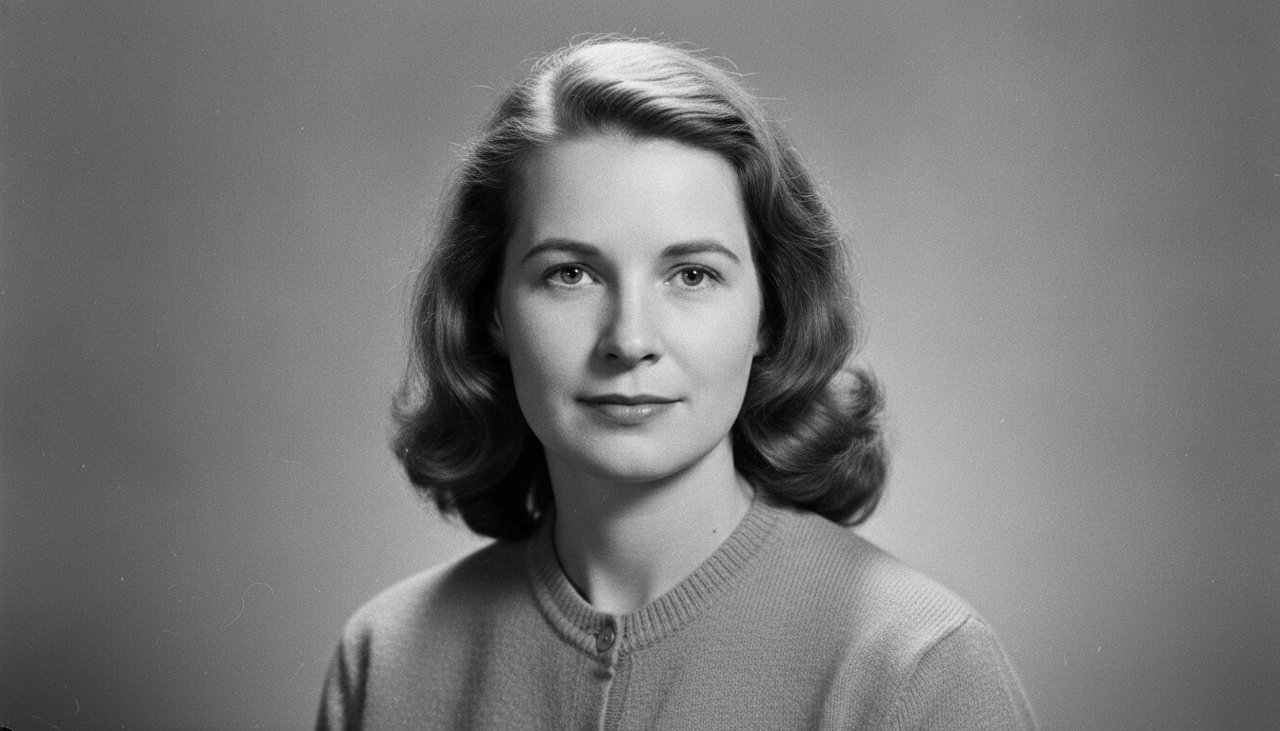
What does it mean to animate an old photo?
Animating an old photo adds a few seconds of natural movement to a still picture: a blink, a small smile, a slow turn of the head. The original photograph stays the reference for the face, the clothing and the light. The result is a short clip that looks like the moment just after the shutter clicked.
This is a motion effect, not restoration. Scratches, fading, dust and missing corners stay where they are unless you repair the scan first in a photo editor. The tool moves the person. It does not rebuild the picture, sharpen a blurry negative or invent detail that was never captured.
Knowing that up front keeps expectations in the right place. A 1940s print with soft focus will still look soft after animation, and a photo with a torn corner will keep the tear. The movement is the new part, and the rest of the image should be treated as an archive rather than a draft.
How to animate an old photo
Start from the best scan you can make. A good file does more for the result than any setting on this page.
- Scan the print at 300 dpi or higher, or photograph it with your phone in even light. A scanning app works if the page is flat and the phone is parallel to the print.
- Avoid glare from a lamp or a flash. Glare hides the eyes, and the eyes are where the motion reads first.
- Crop to the person and keep a small margin around the shoulders. If the print has a white border, you can leave it in or trim it.
- Upload the file, choose a style and confirm the cost shown on the page. You pay for videos that render, and a failed render is refunded.
- Watch the clip from start to finish, check the eyes, mouth and hands, then download the MP4 and share it with the family.
Three gentle styles
Each style gives the photo a period look and one small movement. The motion is deliberately modest: this is a photograph coming back to the surface, not a performance.
- Studio portrait, 1950s: a black and white studio print with soft light and fine grain. The person blinks, the corners of the mouth lift into a small smile and the eyes shift slightly toward the camera.
- Family kitchen, 1965: a faded color snapshot in a modest kitchen. The person turns their head slowly toward the camera, smiles a little and blinks, one hand on the counter.
- Porch, 1970s: a warm color photo on a wooden porch. The person looks up from a letter, blinks and gives a small shy wave.
What the motion can and cannot do
The model can produce a blink, a small smile, a slow head turn and a slight shift of the shoulders. It can also add a small hand movement if the hand is clearly visible. It cannot make a person walk, speak, sing or turn from a full profile into a front view without inventing features that were never in the photo.
Hands and glasses are the usual weak points. If the photo has a hand near the face or thick frames, expect some wobble, and consider a tighter crop. Very small faces, under about a tenth of the frame, give the model too little detail to work with, so a close up scan is worth the extra effort.
Photos of more than one person are harder. With two faces in frame the model may blur one while animating the other. Crop to the person you have permission to animate, or make one clip per person and place them side by side in an editor.
Respect, consent and family feelings
An old photo often shows someone who has died, or a family member who never agreed to appear in a video. Ask the family before you animate and share it. Some people find the motion comforting. Others find it unsettling, and both reactions are reasonable.
Keep the movement modest. A blink and a small smile read as affection. A big grin and a head turn toward the camera can feel like a performance, especially if the person was reserved in life. Match the expression to the person in the photograph rather than to what looks most dramatic on a phone.
Label the clip as AI animated when you post it publicly, particularly in a history group, an archive or a genealogy forum. Do not animate photos of people you cannot identify, and do not use the tool on images of public figures or celebrities.
Ideas for family projects
The most common use is a family album that moves for a few seconds at a reunion or an anniversary dinner. Play the clip on a laptop or a television, then continue with stills in the same period order. The contrast between motion and stillness is the point, so keep the animated clip short.
For a memorial or an anniversary, the memorial video maker at /memorial-video-maker is built for a quieter tone and longer slideshow use. For a birthday, a moving portrait of a grandparent makes a better opening than a printed photo on a table.
Genealogy projects can use the clip as a short introduction to one person in a family tree. Add the dates and the relationship as a caption in your editor, where you can check the spelling. The page itself does not write text on the image.
Using the clip in a slideshow
Clips are 4 seconds at 480p, and HD clips are 8 seconds at 720p. Place the animation at the start or the end of a slideshow, where a few seconds of movement can open or close the sequence without interrupting the rhythm of the stills.
The clip is silent, so add music you have the rights to use and keep it low under any narration. For a service or a reunion, test the file on the actual screen and speakers before the event. A landscape 16:9 clip fits most projectors, and a phone screen may need a vertical canvas with the clip centered.
Download the MP4 and keep a copy with the original scan. Family files get passed around, and the unanimated scan is the version you will want for printing or for a future restoration.
What a video costs
The sample video on this page is there to watch before you decide. A 480p clip with 4 seconds costs 30 credits, and an HD clip at 720p with 8 seconds costs 80 credits. Videos made with credits have no watermark and download as an MP4.
To make one, create an account and pick a credit pack. You can buy one-time credit packs, no subscription. The smallest is 1,000 credits for $9.90, enough for about 33 videos of this effect. Credits never expire and are only taken when a video starts; if the render fails, they return to your balance automatically.
What happens to your photo
Your photo is sent to the AI model only to create your video. Uploaded photos are deleted after 24 hours, and we never publish your photos or videos anywhere. The finished clip is yours to download as an MP4 file.