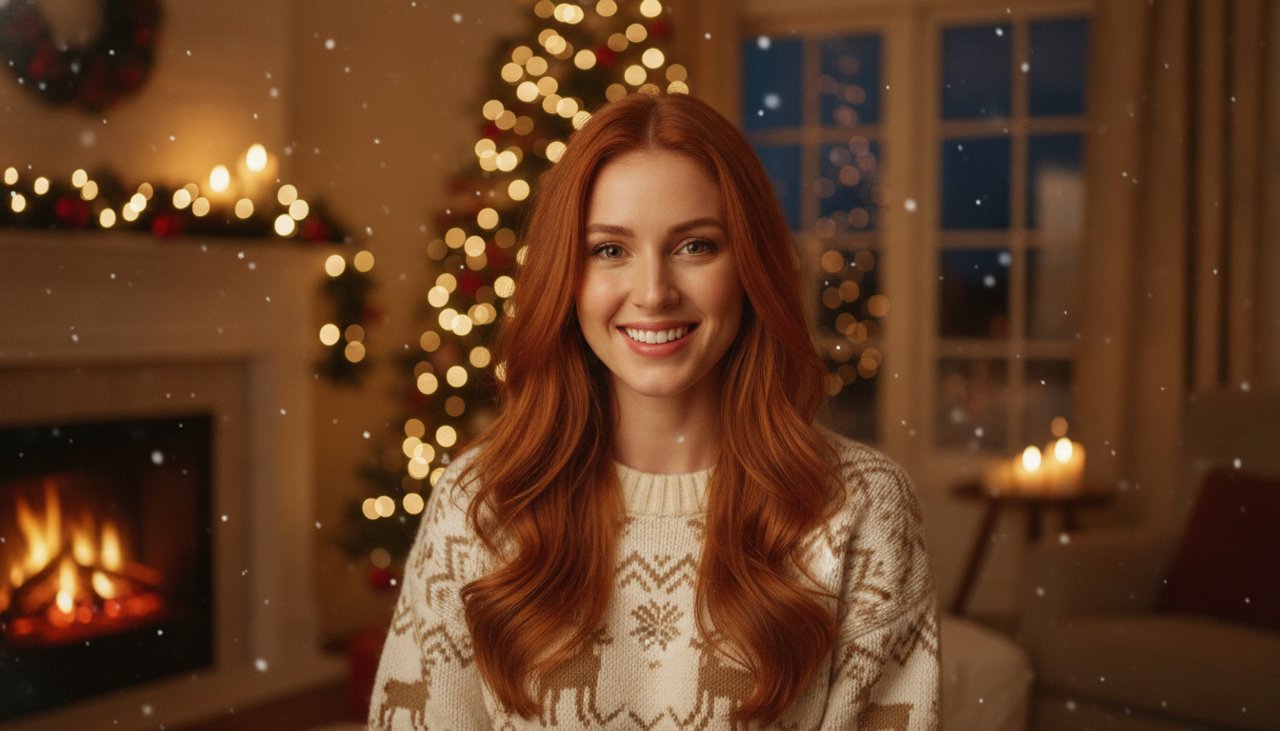
What is an AI Christmas song video?
It is a short holiday clip built from one photo. The person stands by a tree, a snowy window or a fireplace, sways to an original festive instrumental, and the whole thing arrives as a single MP4 with sound. The face and the scene are yours. The track is generated with the clip rather than licensed from a catalog.
The honest version of the promise: there are no vocals, no lyrics and no sung name. The AI does not write a custom carol about your family, and it does not use a familiar holiday tune. What you get is a warm, upbeat backing track that fits a four or five second moment.
That makes it a strong greeting and a weak substitute for a real song. If the point of the gift is a lyric with a name in it, record your own line and lay it over the clip. If the point is a moving holiday card with a familiar face, the generated track is enough.
How the holiday track is made
The video model generates picture and sound in one pass. It receives a description of the scene and the movement, plus a request for an original instrumental with no vocals and no lyrics. The audio is created for your clip, so there is no licensed recording inside the file.
Because the track is generated, the melody changes from clip to clip. Treat it as a warm rhythm section rather than a carol you can hum back. The style is meant to sit under a short social clip, a family story or a holiday message, and it stays out of the way of anything you add later.
The trade off is control. You cannot ask for a specific song, a specific tempo or a specific instrument lineup on this page. If you need a particular carol, add a recording you have the rights to use in your editor.
Three December scenes
Each style sets a holiday room and one simple movement that fits four or five seconds. Pick the scene that matches the photo and the person, then let the track carry the rest.
- Tree lights: the person stands beside a decorated tree with warm white lights, sways gently, reaches up to touch an ornament and smiles. The lights twinkle behind them.
- Window snowfall: the person holds a mug beside a large window while snow falls outside, then turns toward the camera and laughs softly. A small evergreen sits on the sill.
- Fireplace: the person sits near a stone fireplace with a blanket over their shoulders, sways to the music and lifts a mug while the firelight flickers across their face.
How to make it
You need one photo and a couple of minutes. Picture and audio finish together, so there is no separate sound step.
- Upload a photo with the face clearly visible, from the waist up if possible, so the arms and shoulders have room to move.
- Choose Tree lights, Window snowfall or Fireplace.
- Confirm the cost shown on the page and start the render. You pay for videos that render, and a failed render is refunded.
- Listen with the sound on. Check the face, the hands and the volume of the track before you send it.
- Download the MP4. The audio is inside the file, so it plays the same way in a chat, on a phone or in an editor.
Photos for a winter clip
Indoor winter photos are often darker than they look on a phone screen. Choose a picture where the face is lit from the front, not silhouetted against a bright window. A holiday sweater, a scarf or a plain dark shirt all work; busy prints can distract from the face.
Avoid heavy filters, sunglasses and hats that shade the eyes. The model reads the eyes first, and a shadow across them makes the result look less like the person. If the only good photo is a group shot, crop it to one person before uploading.
The style rebuilds the room around the person, so the original background does not need a tree or a fireplace. A photo taken in a kitchen or an office can still become a December scene.
Adding your own greeting or carol
Record a short voice note on your phone: a name, a wish for the year and one specific memory. Import the MP4 and the voice note into CapCut, place the voice at the start and lower the generated instrumental to about a quarter volume underneath it. That gives the clip the one thing the AI cannot provide, which is your voice saying the name.
For text, add a title card with the name and the year, and keep it on screen for at least two seconds. If you are sending the clip in a chat, a typed message may be enough and saves the edit.
If you want a traditional carol in the background, use a recording you have permission to use and mute the generated track. Do not upload a commercial recording to this page; the video model does not take a music file, and the track you hear is always generated for the clip.
Timing for December
December is the busiest month for holiday video tools. Make your clips in late November, check them while you have time to redo one, and keep the MP4s on your phone. Renders queue up as the holidays get closer, and a greeting that arrives on the twenty fourth is worth more than a perfect one that arrives in January.
The standard clip is 4 seconds at 480p. HD is 8 seconds at 720p. If you are making clips for several relatives or a team, use a different photo for each person, because the same photo with a different style reads as a repeat.
For a feed or a story, place the clip on a vertical canvas in CapCut, keep the face centered and use the space above for a short caption. Posting and scheduling happen in the app you use. This page makes the file and does not publish it for you.
What a video costs
The sample video on this page is there to watch before you decide. A 480p clip with 4 seconds costs 50 credits, and an HD clip at 720p with 8 seconds costs 80 credits. Videos made with credits have no watermark and download as an MP4.
To make one, create an account and pick a credit pack. You can buy one-time credit packs, no subscription. The smallest is 1,000 credits for $9.90, enough for about 20 videos of this effect. Credits never expire and are only taken when a video starts; if the render fails, they return to your balance automatically.
What happens to your photo
Your photo is sent to the AI model only to create your video. Uploaded photos are deleted after 24 hours, and we never publish your photos or videos anywhere. The finished clip is yours to download as an MP4 file.